12 Best PDF Tools for Creating, Editing, Compressing, and More
Nov 12, 2026
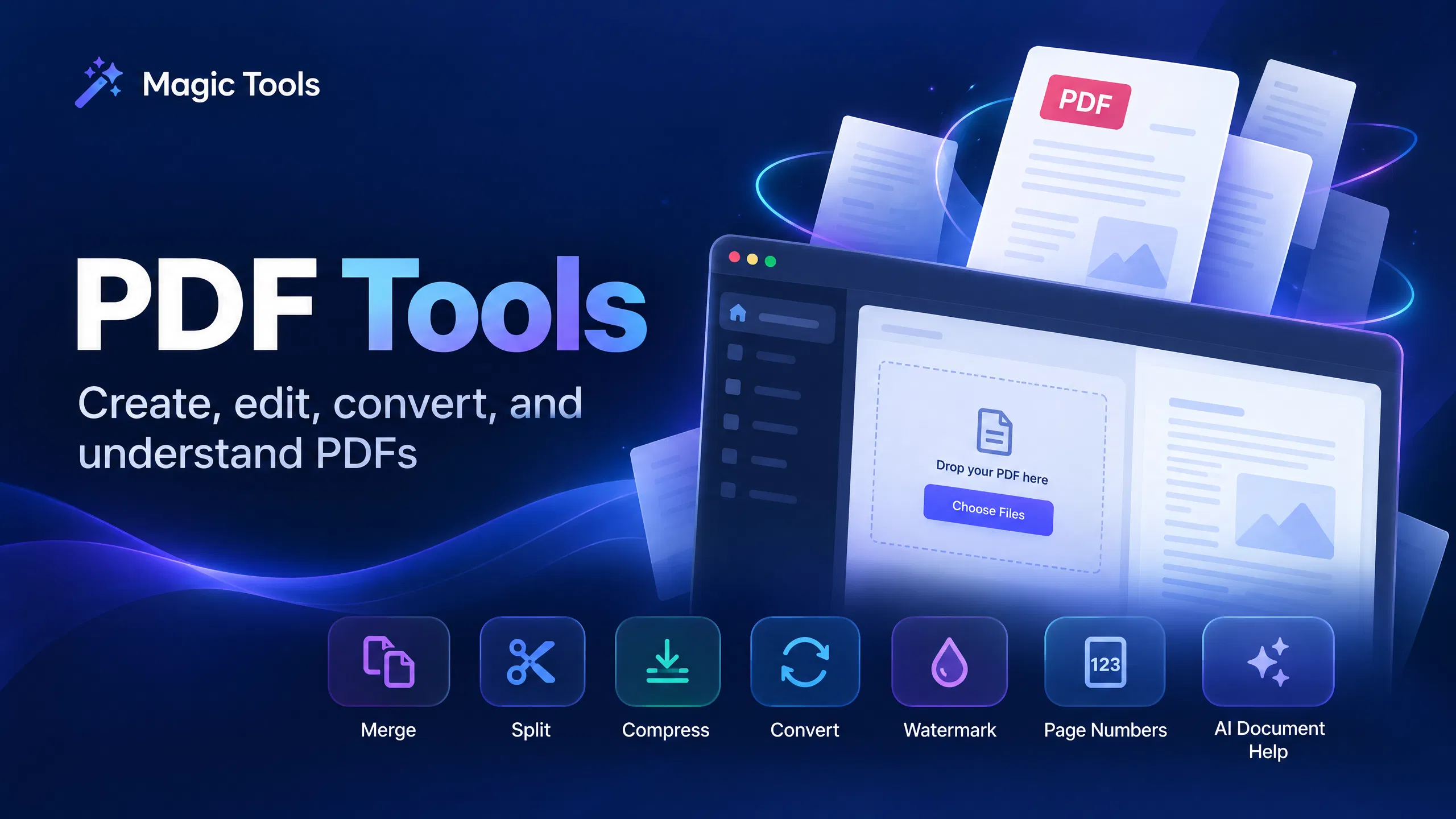
12 free PDF tools to merge, split, compress, edit, convert, summarize, chat with, and translate PDF files online.
PDF files are useful because they keep documents easy to share and view across devices. However, everyday PDF tasks can still be frustrating. You may need to combine files, extract a few pages, fix page orientation, reduce file size, add page numbers, or understand a long document.
Magic Tools brings these tasks together in one PDF Tools category. The collection includes 12 free browser-based tools for creating, editing, organizing, converting, and working with PDF content. No software installation is required, and the public tool pages say that no signup is needed.
This guide explains what every PDF tool does, how it works, and which tool to choose for a specific task. It also covers the three AI PDF tools, their practical uses, and the privacy questions worth checking before you upload a sensitive document.
Key Takeaways
- Use Image to PDF to create a PDF from photos, scans, or screenshots.
- Use Merge, Split, Organize, Rotate, Watermark, and Page Numbers for common PDF editing tasks.
- Use Compress PDF when a file is too large to email, upload, or store.
- Use PDF to Image when you need PNG or JPG versions of selected PDF pages.
- Use AI PDF Summarizer, Chat with PDF, or Translate PDF for short AI-assisted document tasks.
- Most PDF pages show a 20 MB upload limit. The AI tools also state a limit of up to 15 pages.
What PDF tools are available on Magic Tools?
Magic Tools has 12 PDF utilities grouped around common document workflows. You can create a PDF from images, combine existing PDFs, select or rearrange pages, add simple annotations, reduce file size, export pages as images, and use AI to summarise, question, or translate a PDF.
The tools are designed for focused jobs rather than one large all-purpose editor. That can make the workflow easier. You choose the exact action you need, adjust the available settings, and download or review the result.
The public pages also state that simple tools can keep files in the browser unless an AI feature is used. The exact backend behavior, retention, and download handling are not fully documented on every tool page, so avoid uploading passwords, private keys, confidential records, or sensitive personal documents unless you have checked the current privacy information.
1. Image to PDF: create a PDF from images
Image to PDF turns multiple image files into one PDF document. It is useful for scanned pages, phone photos, screenshots, receipts, whiteboard notes, and image collections.
How Image to PDF works
- Add image files by dragging them into the upload area or choosing them from your device.
- Choose a page size such as Fit each image, A4, Letter, Legal, or A5.
- Select Auto, Portrait, or Landscape orientation.
- Set the page margin in points.
- Adjust JPG quality if you need to balance image clarity and file size.
- Click Create PDF.
The main decision is whether you want the page to follow the original image dimensions or fit a standard paper size. Choose Fit each image when preserving the original shape matters. Choose A4 or Letter when the final document needs a familiar printable layout.
One small point is worth checking on the live page: the upload area may display a PDF file label even though the tool instructions describe adding images. Confirm the accepted format before processing a large batch.
2. Merge PDF: combine several PDFs into one
Merge PDF combines two or more PDF files into a single document. It is helpful when you have separate chapters, invoices, reports, appendices, scanned sections, or downloaded documents that belong together.
How Merge PDF works
- Upload two or more PDF files.
- Choose Upload order if the order in which you added the files is correct.
- Choose Sort by file name when alphabetical order is more useful.
- Check the displayed file order.
- Click Merge.
Always check the order before creating the final document. A merged PDF can look correct at first glance while still placing an appendix or signature page in the wrong position.
3. Split PDF: extract or divide pages
Split PDF gives you several ways to divide a document. You can extract a page range into one new PDF, save selected pages as separate PDFs, or split the document into groups of a chosen size.
How Split PDF works
- Upload one PDF.
- Choose one of these modes:
- Extract page range into one PDF
- Save each selected page as its own PDF
- Split every N pages
- Enter page numbers or ranges when needed. The page gives examples such as 1-3,5,8.
- Click Split.
Use the first mode when you want a chapter or section in one file. Use the second mode for individual forms or page-by-page exports. Use the third mode when a long document needs to be divided into equal groups.
Check the output carefully when using non-contiguous page ranges. Page selection syntax is powerful, but a missing comma or range can change the result.
4. Compress PDF: reduce file size
Compress PDF reduces the size of a PDF for easier sharing, uploading, storing, or archiving. It includes more control than a simple low/medium/high compressor.
How Compress PDF works
- Upload a PDF.
- Choose a preset: Extreme (smallest), Recommended, High quality, or Custom.
- Adjust JPEG quality if needed.
- Choose a render scale of 1.0x, 1.2x, 1.5x, or 2.0x.
- Optionally convert pages to grayscale.
- Enter selected page numbers or ranges, or leave the field blank to process all pages.
- Click Compress.
Start with Recommended for normal documents. Choose High quality when images or small text matter more than file size. Use Extreme when the main goal is a smaller attachment or upload. Higher render scales can affect both output quality and file size, so preview the result before replacing the original.
Compression is not a guaranteed target-size service. The final result depends on the original PDF, embedded images, fonts, and settings.
5. Organize PDF: reorder, delete, or rotate pages
Organize PDF handles several page-level changes in one place. You can create a new page order, delete pages, and apply a rotation to the remaining pages.
How Organize PDF works
- Upload a PDF.
- Enter a page order such as 3,1,2 in New order.
- Leave New order blank if you want to reverse all pages.
- Optionally enter pages to remove, such as 2,5-6.
- Choose No extra rotation, 90°, 180°, or 270°.
- Click Organize.
This is a useful tool after scanning a document or combining files. For example, you can merge several PDFs, remove blank pages, place the cover at the front, and rotate pages that were scanned sideways.
Use the page order field carefully. If the document contains important signatures, bookmarks, forms, or other advanced PDF features, review the final output before sharing it.
6. Rotate PDF: fix page orientation
Rotate PDF corrects sideways or upside-down pages. You can rotate all pages or apply the change only to a selected range.
How Rotate PDF works
- Upload a PDF.
- Choose 90° clockwise, 180°, or 270°/90° counter-clockwise.
- Choose All pages or Page range.
- If you choose Page range, enter pages such as 1-3,5,8.
- Click Rotate.
Choose All pages when the whole document has the same orientation problem. Choose Page range when only a few scanned pages need correction. This tool is often useful after using Split PDF or Merge PDF, especially when documents came from different scanners.
7. Add Watermark to PDF: label selected pages
Add Watermark to PDF adds customizable text to selected PDF pages. It can help label a document as confidential, draft, internal, sample, or for review.
How Add Watermark to PDF works
- Upload a PDF.
- Enter the watermark text.
- Choose a font.
- Adjust the size, color, opacity, and rotation.
- Select a position from the available placement controls.
- Enable Repeat across page if you want a tiled watermark.
- Enter page numbers or ranges, or leave Pages blank for all pages.
- Click Stamp.
A light, partially transparent watermark is usually easier to read around. A strong diagonal watermark can make ownership or document status more obvious. Use page selection when only certain pages contain sensitive or draft content.
This tool adds visible text. It should not be treated as encryption, password protection, or a replacement for access controls.
8. Add Page Numbers: improve document navigation
Add Page Numbers adds page numbers to a PDF header or footer. It is useful for reports, manuals, proposals, ebooks, training material, and documents created by combining several files.
How Add Page Numbers works
- Upload a PDF.
- Choose a header or footer position.
- Select a format such as 1, Page 1, 1 / N, or Page 1 of N.
- Set the starting number.
- Adjust font size, color, and margin.
- Enable Skip first page if the cover should not display a number.
- Click Add numbers.
Use Page 1 of N when readers need a clear sense of document length. Use a simple number for a clean report style. Skipping the first page is helpful for covers, title pages, and front matter.
9. PDF to Image: export PDF pages as PNG or JPG
PDF to Image converts selected PDF pages into image files. This is useful when you need a page preview, a social graphic, a slide asset, a web image, or a screenshot of a document page.
How PDF to Image works
- Upload a PDF.
- Set the From page value.
- Set the To page value, or leave it as All for every page.
- Choose PNG or JPG.
- Choose a resolution: Screen at about 90 DPI, Standard at about 120 DPI, Print at about 160 DPI, or High at about 220 DPI.
- Click Export pages.
PNG is often useful for sharper text and simple graphics. JPG can be smaller for photographic pages. Screen resolution is usually enough for online previews, while Print or High may be better when the exported image needs more detail.
If you export many pages, check how the tool packages the output and whether you need to download multiple image files.
10. AI PDF Summarizer: get a quick document overview
AI PDF Summarizer creates an AI-generated summary of a PDF. You can choose Short, Medium, or Detailed output and select Bullets or Paragraph format.
How AI PDF Summarizer works
- Upload a PDF.
- Choose Short, Medium, or Detailed.
- Choose Bullets or Paragraph.
- Click Summarize PDF.
- Review the generated summary against the original document.
Use Short for a quick first impression. Use Medium for notes or a general overview. Use Detailed when you need more context before reading the full document.
The page states that AI PDF tools support documents up to 15 pages and that the upload area shows a 20 MB limit. AI output should be treated as a reading aid, not a perfect replacement for the original. Check important names, dates, numbers, exceptions, and conclusions yourself.
The page also says files stay in the browser unless an AI feature is used. Because summarization is an AI feature, do not upload confidential documents unless the current privacy and data-handling terms meet your needs.
11. Chat with PDF: ask questions about a document
Chat with PDF lets you ask questions about an uploaded PDF and receive an AI-generated answer based on the document. It is better for targeted questions than a single general summary.
How Chat with PDF works
- Upload a PDF.
- Enter a question in the Question field.
- Click Ask.
- Read the answer.
- Ask another question if you need clarification.
You might ask, “What are the main recommendations?” or “Which section discusses cancellation terms?” More focused questions usually produce more useful results than a vague request.
The page states a 20 MB upload limit and support for documents up to 15 pages. It does not promise perfect accuracy, citations, OCR for scanned pages, or support for every PDF feature. Compare important answers with the original document before making a legal, financial, medical, or business decision.
12. Translate PDF: translate document text with AI
Translate PDF translates text in a PDF into a selected target language. The page lists English, Spanish, French, German, Italian, Portuguese, Arabic, Hindi, Urdu, Chinese, Japanese, Korean, Turkish, Russian, and Indonesian.
How Translate PDF works
- Upload a PDF.
- Choose a target language.
- Click Translate.
- Review the translated result.
This is useful for understanding a short document, reviewing a foreign-language report, or preparing a first translation draft. Always check names, addresses, technical terms, legal wording, measurements, and formatting after translation.
The page states a 20 MB upload limit and an AI processing limit of up to 15 pages. It does not clearly promise that the result will be a new downloadable PDF with identical formatting. If layout preservation is important, review the output carefully before publishing or sending it.
Which PDF tool should you use?
The easiest way to choose is to start with the result you need.
- Need to create a PDF from photos or scans? Use Image to PDF.
- Need to combine several PDFs? Use Merge PDF.
- Need only a few pages from a long document? Use Split PDF.
- Need to reduce the file size? Use Compress PDF.
- Need to reorder or delete pages? Use Organize PDF.
- Need to fix sideways pages? Use Rotate PDF.
- Need a visible draft or confidentiality label? Use Add Watermark to PDF.
- Need navigation for a report or manual? Use Add Page Numbers.
- Need PNG or JPG versions of pages? Use PDF to Image
- Need a short overview? Use AI PDF Summarizer.
- Need to ask questions about a document? Use Chat with PDF.
- Need a first translation draft? Use Translate PDF.
A practical PDF workflow from start to finish
You can combine several tools when one PDF needs more than one change. A typical workflow could look like this:
- Use Image to PDF to create a document from scanned pages or photos.
- Use Organize PDF to correct the order and remove unwanted pages.
- Use Rotate PDF to fix sideways pages.
- Use Add Page Numbers to make the document easier to navigate.
- Use Add Watermark to PDF to label a draft or internal copy.
- Use Compress PDF after reviewing the document and deciding how much quality you can trade for a smaller file.
- Use PDF to Image if you need previews or selected pages as image files.
For a research workflow, you could use Chat with PDF to ask targeted questions, then use AI PDF Summarizer to create a short overview for your notes. For multilingual work, Translate PDF can provide a first translation before a human review.
The order matters. Compressing too early can reduce image quality before you finish editing. Adding page numbers before deleting pages can also create unnecessary work. Build and edit first, review the document, and optimize it near the end.
Are Magic Tools PDF tools free?
The public PDF category describes these tools as free and available without a Pro plan. The tool pages also say that no signup is needed for the listed PDF utilities. Ads may appear on the site to support the free catalog.
The category page shows a 20 MB upload limit for PDF tools. The AI PDF pages also state a limit of up to 15 pages. Limits can change as tools are updated, so check the individual tool page before starting a large job.
Is it safe to upload a PDF?
For a low-risk document, the browser-based workflow may be convenient. The tool pages repeatedly state that files stay in the browser unless an AI feature is used. However, the pages do not fully document transport, encryption, retention, deletion timing, AI providers, or server location.
Use these simple precautions:
- Do not upload passwords, private keys, recovery codes, or payment information.
- Remove personal information that is not needed for the task.
- Use non-AI tools for sensitive documents when their documented behavior is suitable for your situation.
- Treat AI PDF tools as a possible external-processing boundary.
- Keep the original file before editing or compressing it.
- Review the final PDF before sharing it.
Final thoughts
Magic Tools’ PDF category covers the most common document jobs in one place. The non-AI tools focus on clear, specific actions such as merging, splitting, rotating, watermarking, numbering, compressing, and converting pages. The AI tools add quick summaries, document questions, and translation for shorter PDFs.
The best results come from choosing the tool that matches the task, checking the available settings, keeping the original file, and reviewing the result before you share it. For everyday PDF work, start with the complete PDF Tools category and choose the focused utility you need.
Frequently Asked Questions (FAQ'S)
Do I need to install software to use these PDF tools?
No. The category pages present the tools as online browser utilities. You can open a tool, add a file, choose the settings, and run the task without installing a desktop PDF program.
Do I need a Magic Tools account?
No signup is stated as required for the public PDF tools. Magic AI is a separate account-based workspace, but the PDF category tools are presented as public utilities.
What is the maximum PDF upload size?
Most PDF tool upload areas show a maximum of 20 MB. The exact meaning of the limit, such as per file or combined upload, is not always explained, so check the individual page for the task you want to perform.
Which PDF tools use AI?
AI PDF Summarizer, Chat with PDF, and Translate PDF are the explicitly AI-focused tools in this category. They are intended for summaries, document questions, and translation. The pages state a limit of up to 15 pages for AI PDF tools.
Can I use these tools for confidential documents?
Use caution. Avoid uploading confidential or highly sensitive information unless you have reviewed the current privacy terms and are comfortable with the stated processing. Never upload passwords, private keys, recovery codes, or other secrets.
What is the best tool for reducing PDF size?
Use Compress PDF. Start with the Recommended preset, then choose High quality when readability matters or Extreme when the smallest file is the priority. Preview the compressed result before sharing it.
What is the difference between Split PDF and Organize PDF?
Split PDF creates separate documents or extracts selected pages. Organize PDF changes the order of pages, deletes pages, and can apply a rotation to the remaining pages. You may use both tools in the same workflow.